System Requirements
These are the baseline numbers InvictusOS is tuned for.
Minimum
- CPU: 990 MHz (Pentium III / Atom‑class).
- RAM: 512 MB.
- Disk: 4.8 GB free space.
- Display: 512 × 300 or higher.
- Boot: BIOS / legacy boot support.
Recommended
- CPU: ≥ 1 GHz.
- RAM: 1 GB or more.
- Disk: 5.8 GB free space.
- Display: 1024 × 600 or higher.
- GPU: None required (works without dedicated GPU).
Install media
- USB drive: 4 GB or larger.
- InvictusOS Sagaris ISO image.
- ISO writer: BalenaEtcher, dd, Rufus or similar.
Install Overview
this is a overview for a standard USB install.
1. Prepare the USB
- Download the Sagaris ISO.
- Insert your USB drive (4 GB+).
- Open your ISO writer and select the ISO.
- Pick the correct USB device as the target.
- Start the write process and wait for it to finish.
2. Boot from USB
- Plug the USB into the target machine.
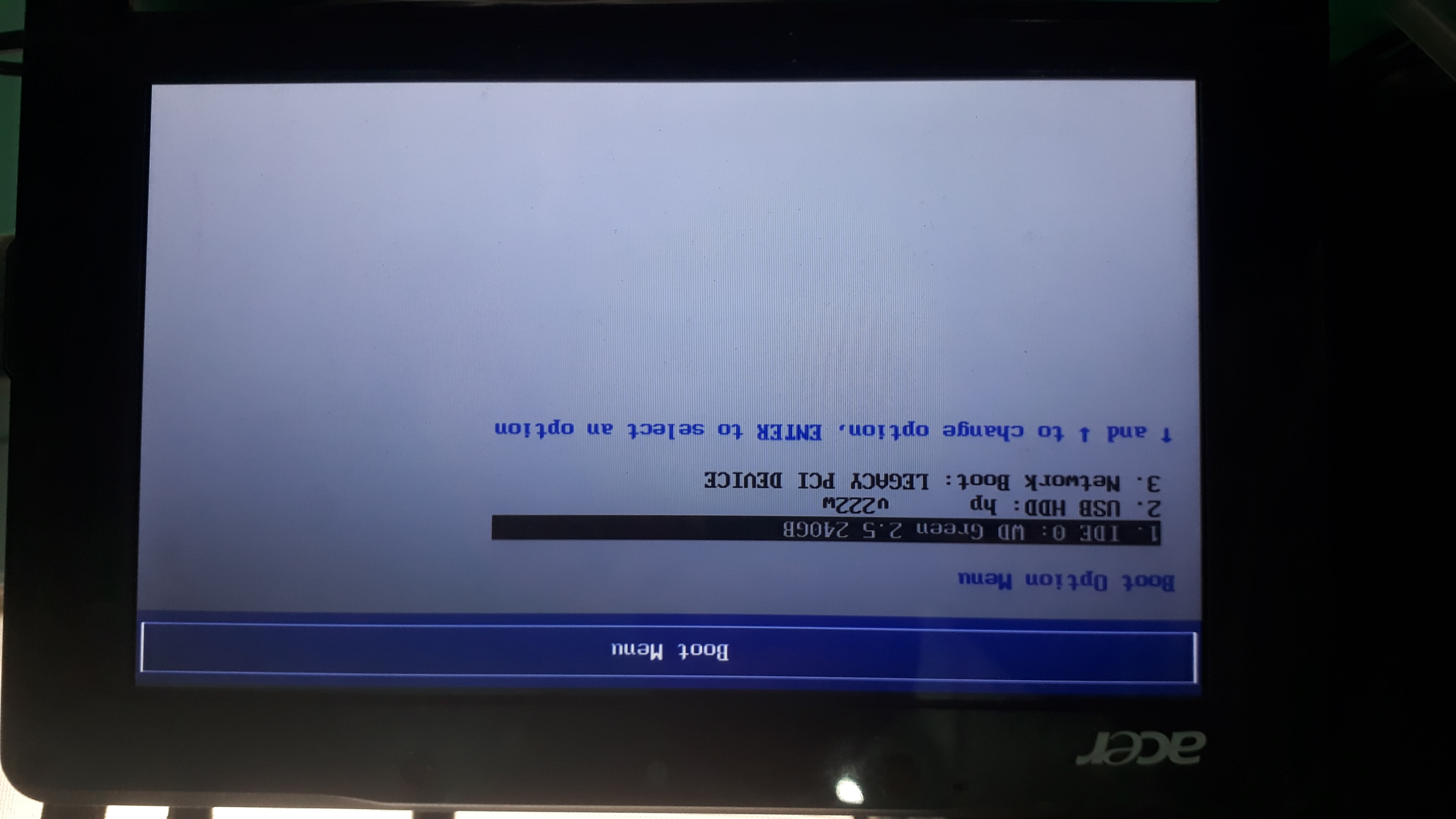
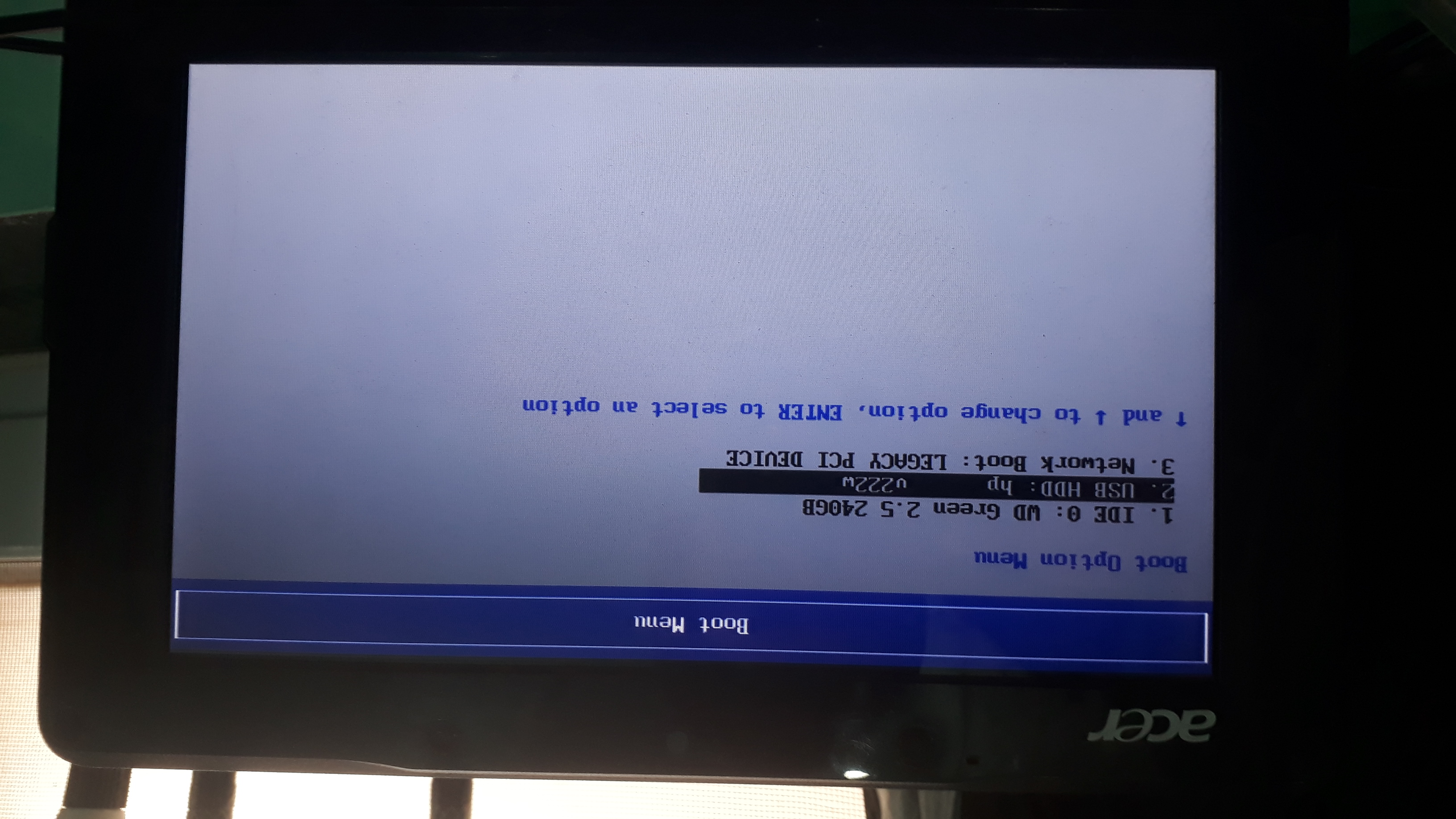
- Enter the boot menu or BIOS (F2 / F10 / F12 / Del, etc.). Depends on your PC manufacturer.
- Choose the USB device as the boot source.
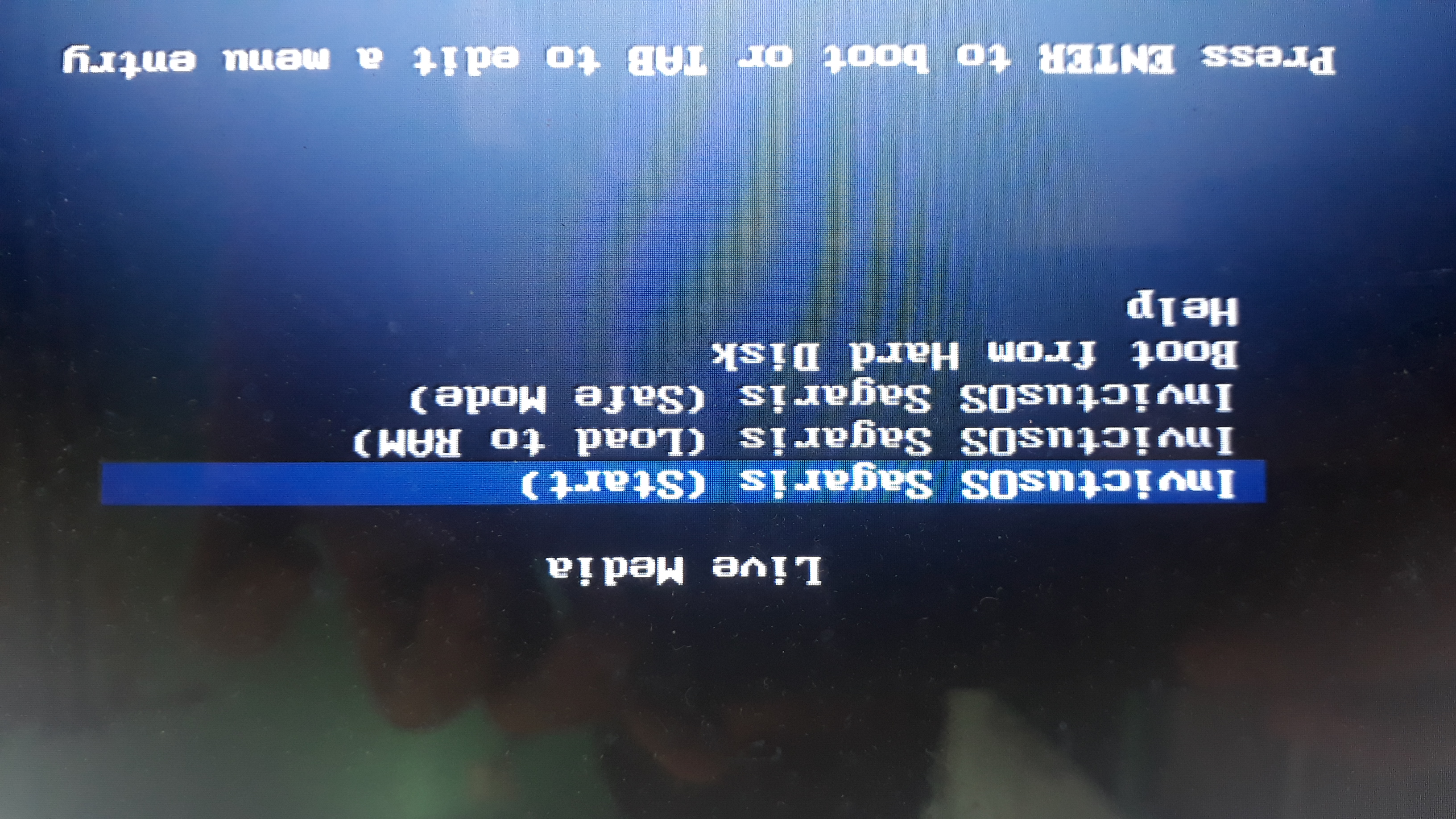
- Select the InvictusOS live option in the boot menu.
3. Install to disk
- From the live session, launch the InvictusOS installer.
- Pick language, keyboard layout and time zone.
- Select the target disk and partition scheme.
- Confirm and start the installation.
- Wait until the installer reports completion.
4. First boot
- Shut down the live session.
- Remove the USB drive.
- Power on and boot from the internal disk.
- Create your user and finish setup.
Cautions
Keep these in mind before you commit any changes.
Data loss
- Writing the ISO to a USB drive erases all data on that drive.
- Installing to disk can erase existing operating systems and files.
- Always back up important data before formatting or partitioning.
Device selection
- Double‑check the target device in your ISO writer (e.g. /dev/sdX).
- Confirm the correct disk in the installer before proceeding.
- If unsure, stop and verify device names from another system.
Legacy hardware
- Some very old BIOS implementations may not boot from USB reliably.
- Boot keys differ between vendors; check the on‑screen hints.
- If the system fails to boot, test the USB on a second machine.
Enter BIOS
- Turn on the computer and press the BIOS key (usually F2, F10, F12, or Del).
- Navigate to the boot settings or boot order menu.
- Select InvictusOS / USB Manufacturer name in BIOS
- Then you should boot to your Live USB
Select InvictusOS in GRUB
- Select Live Boot/Start
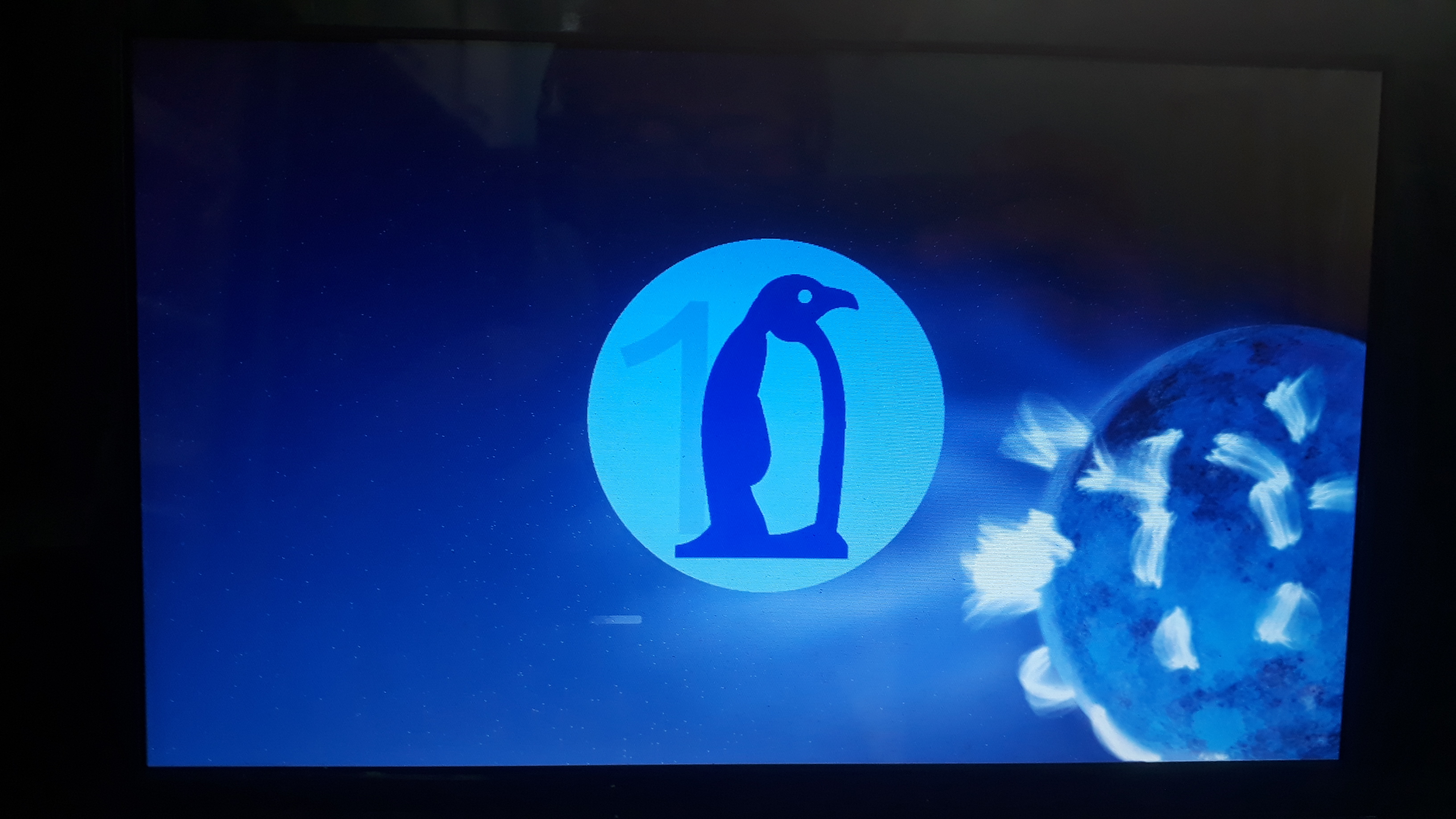
- The boot Animation will appear
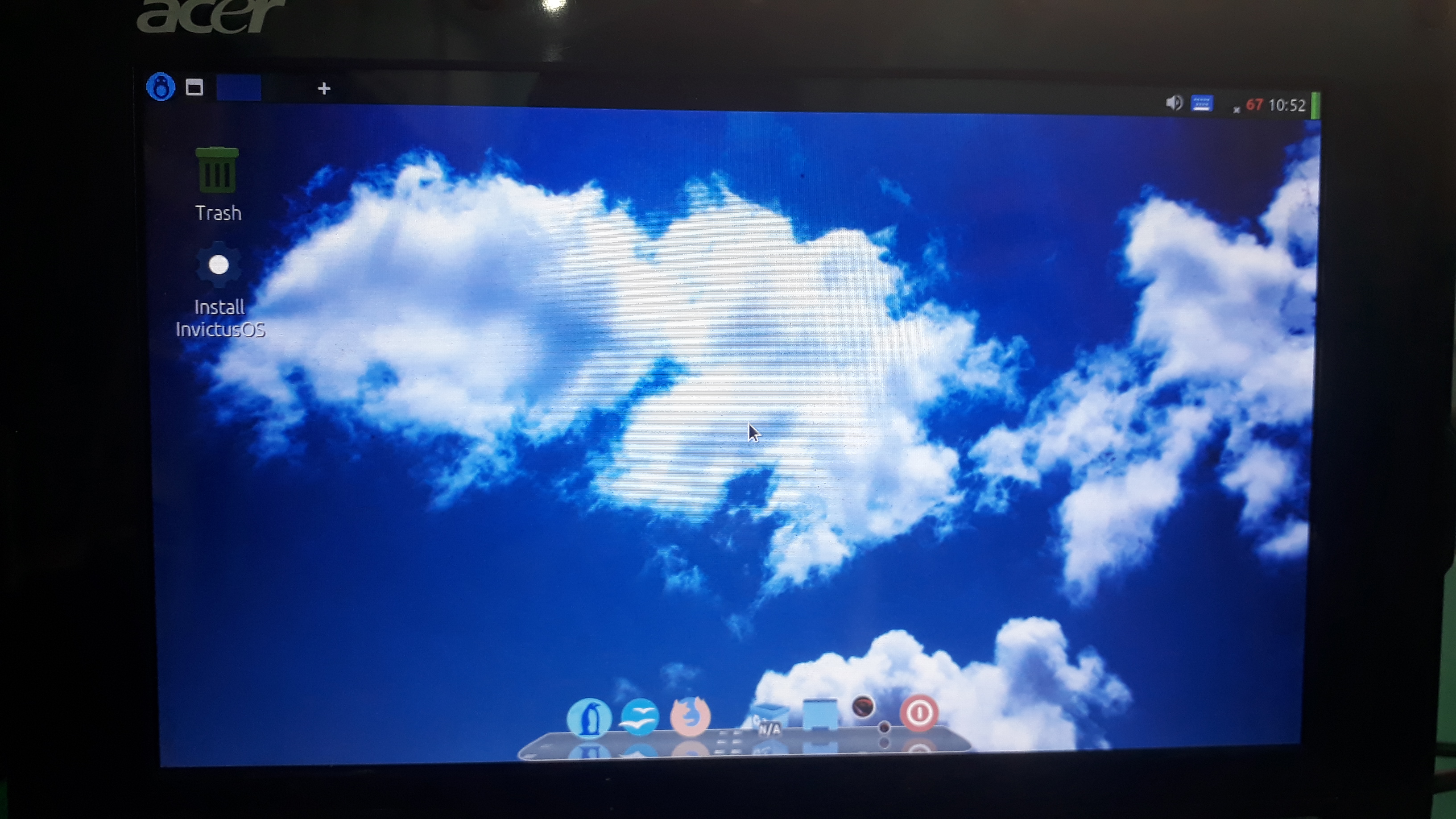
- Then you will boot to the desktop
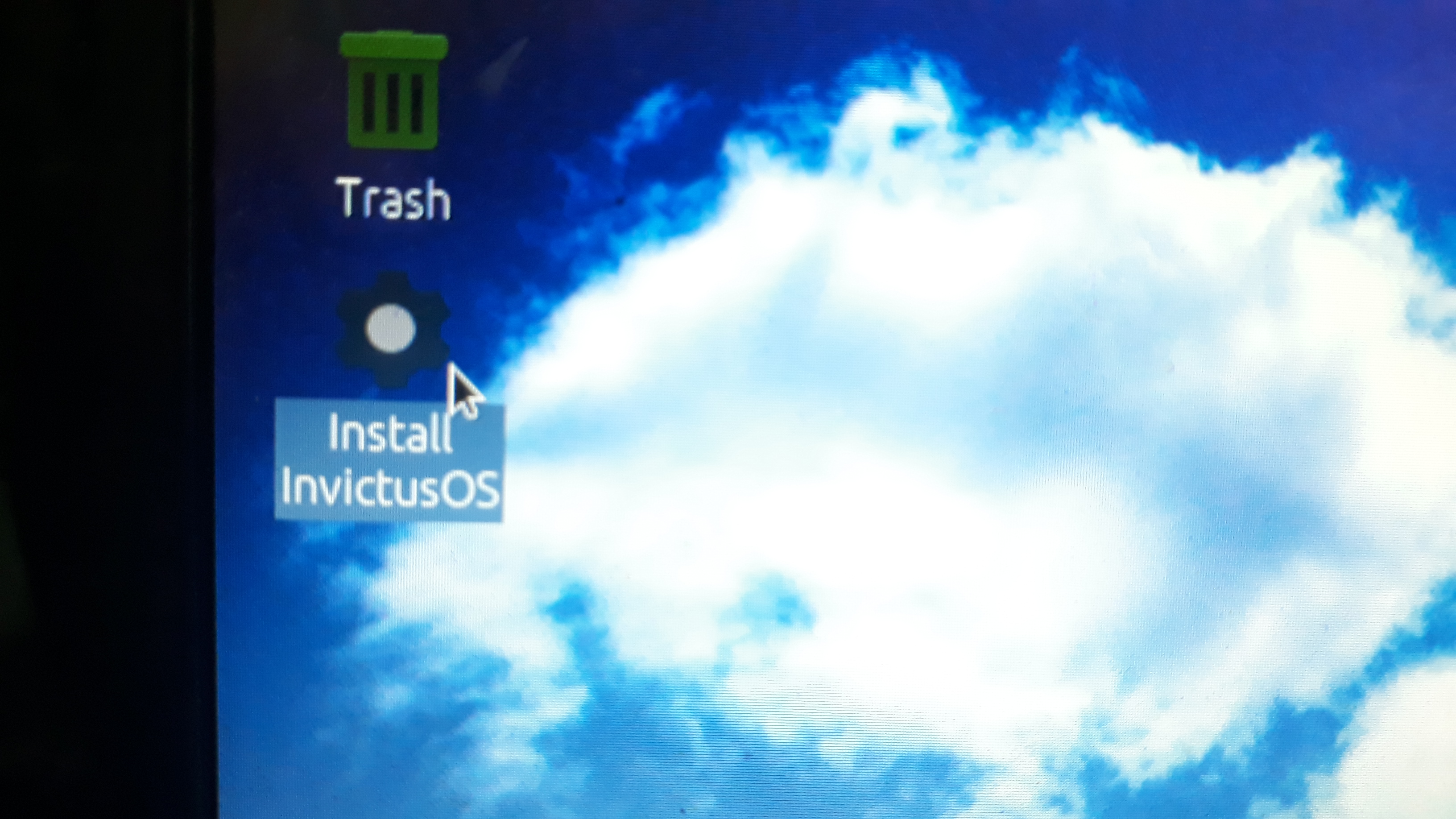
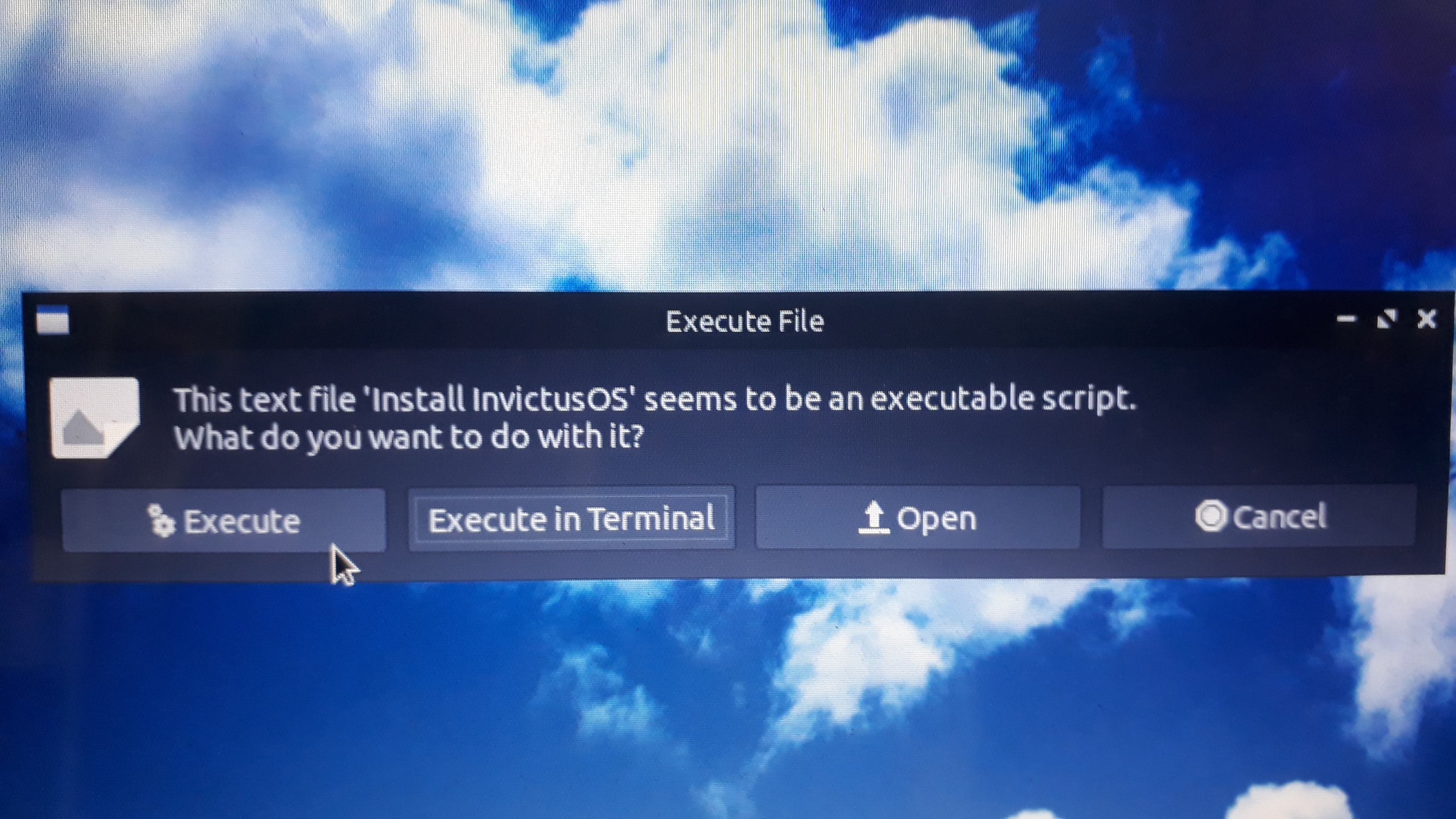
Installing InvictusOS
- Select Live Boot/Start
- Select "Execute"
- Then the installer will appear
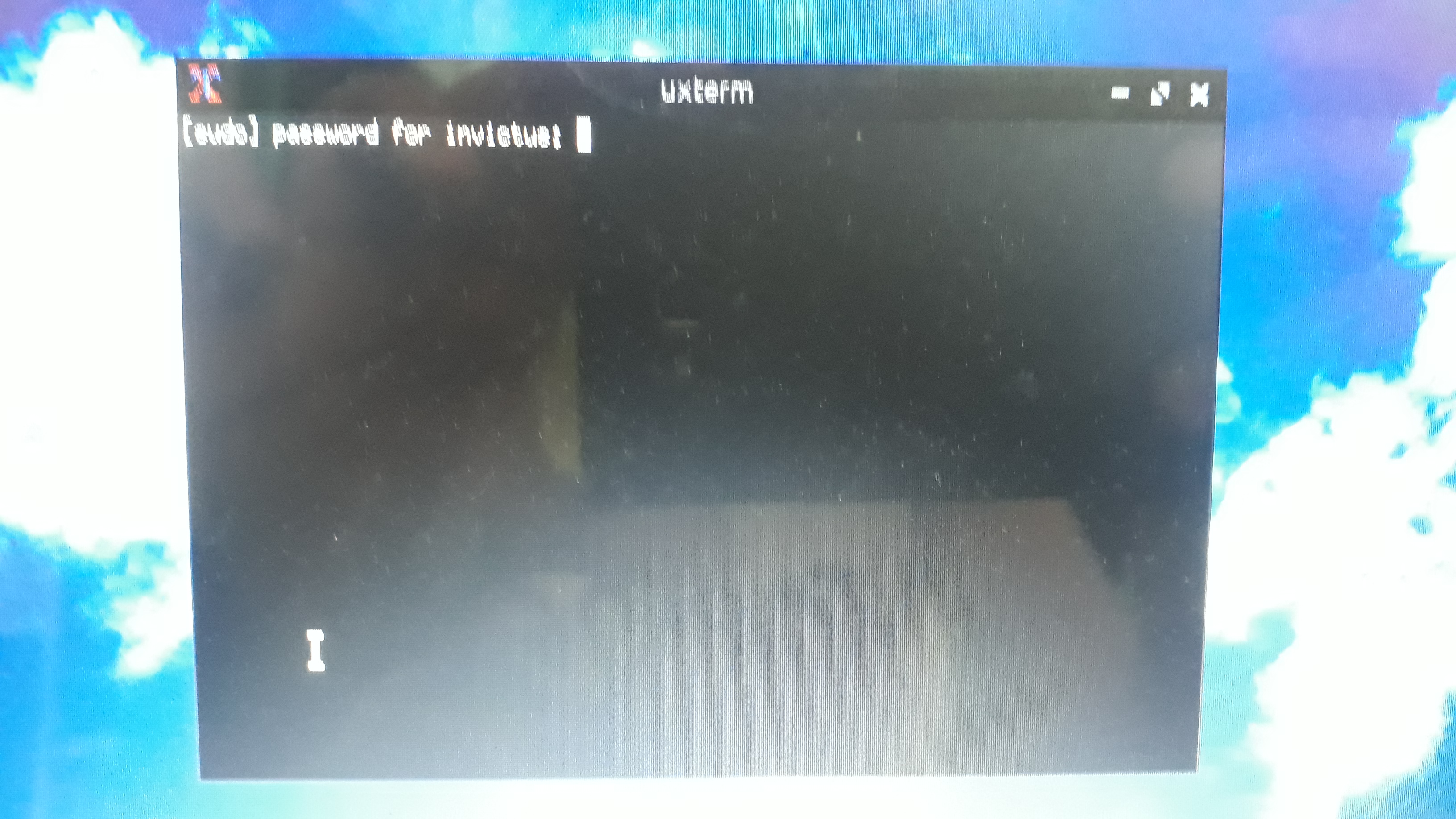
The default username is "invictus" and password is "Invictus".
InvictusOS Installer
- Select your Continent
- Select your Timezone City
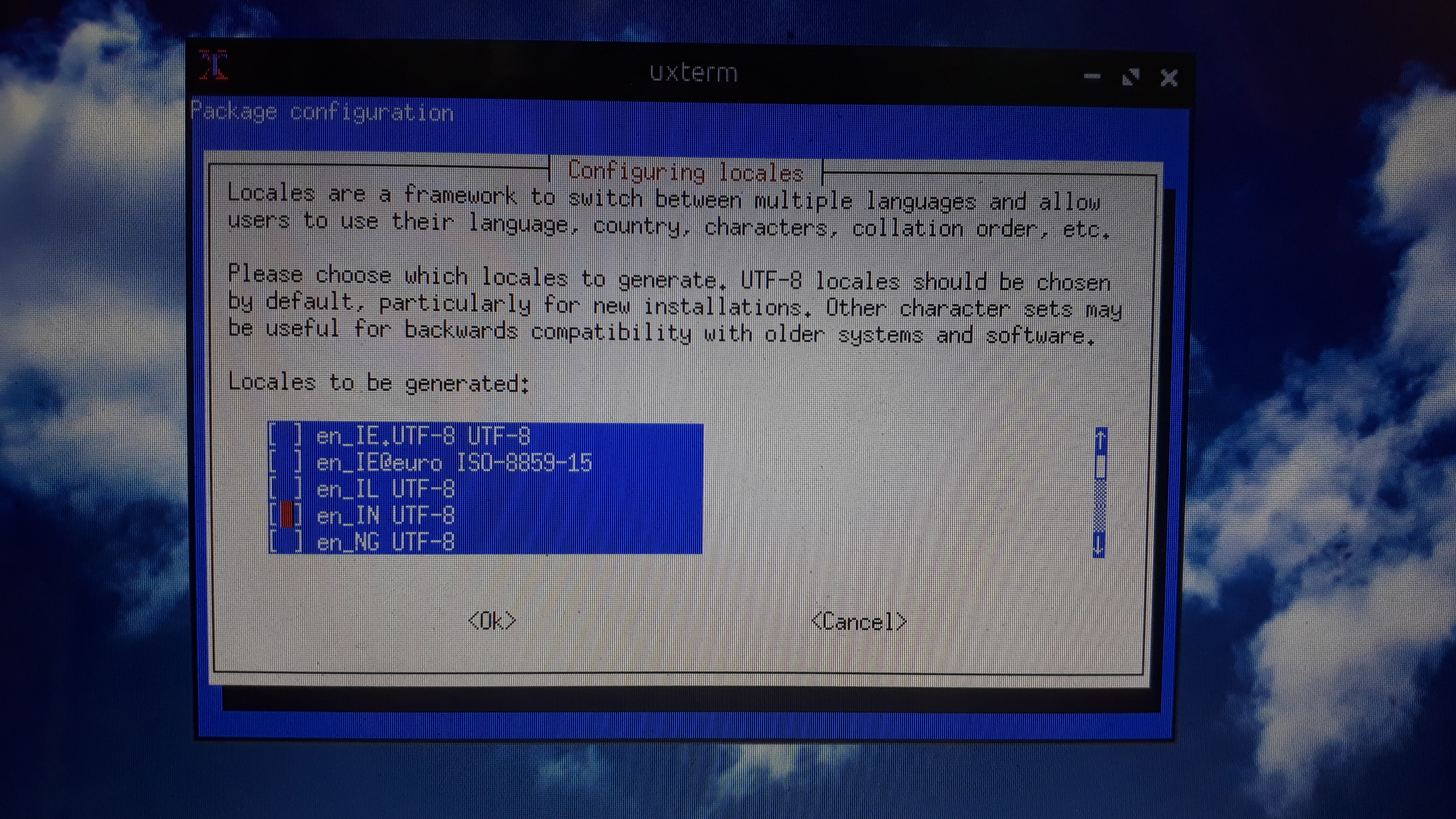
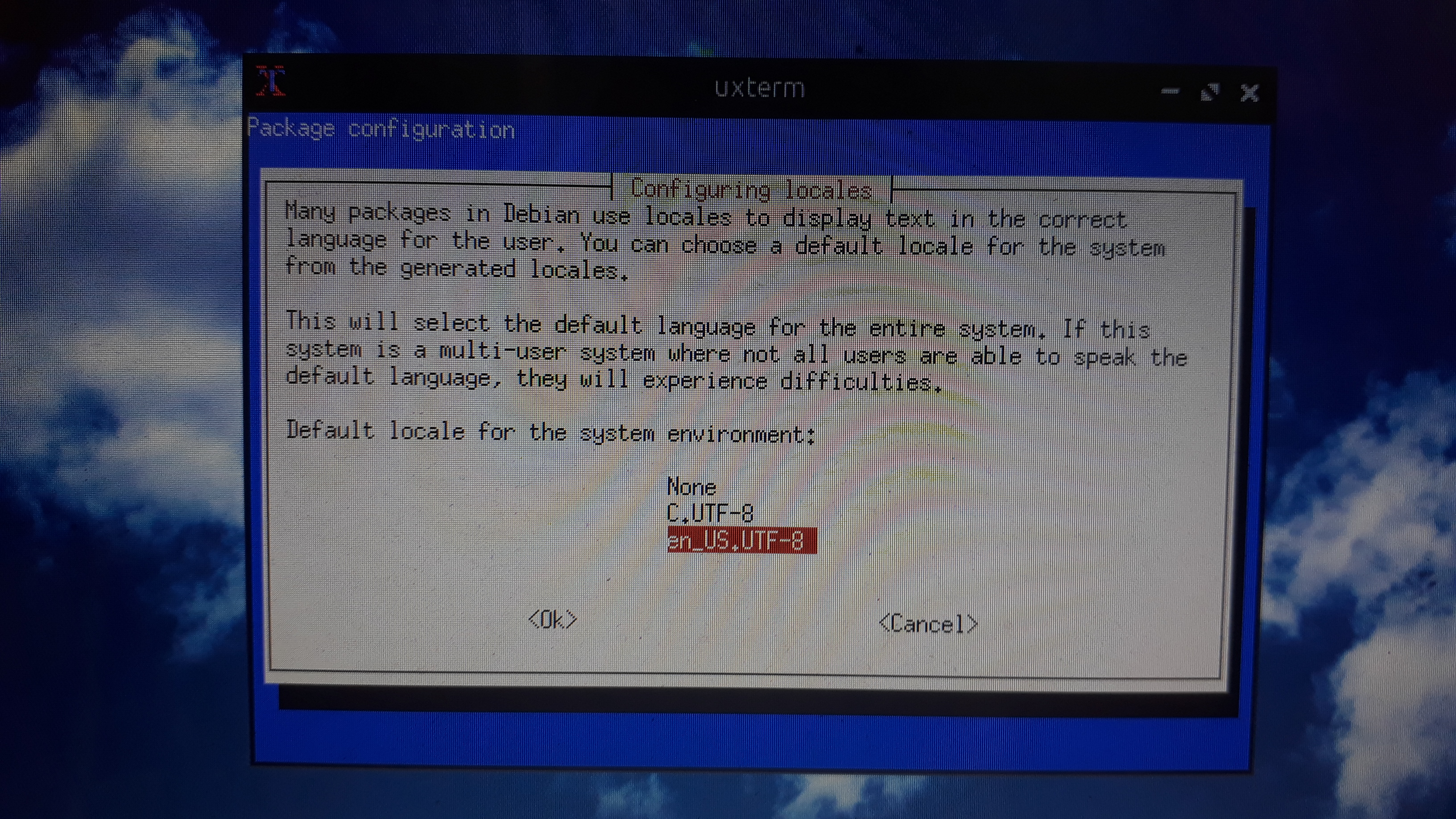
- Select your Locales basically your Language
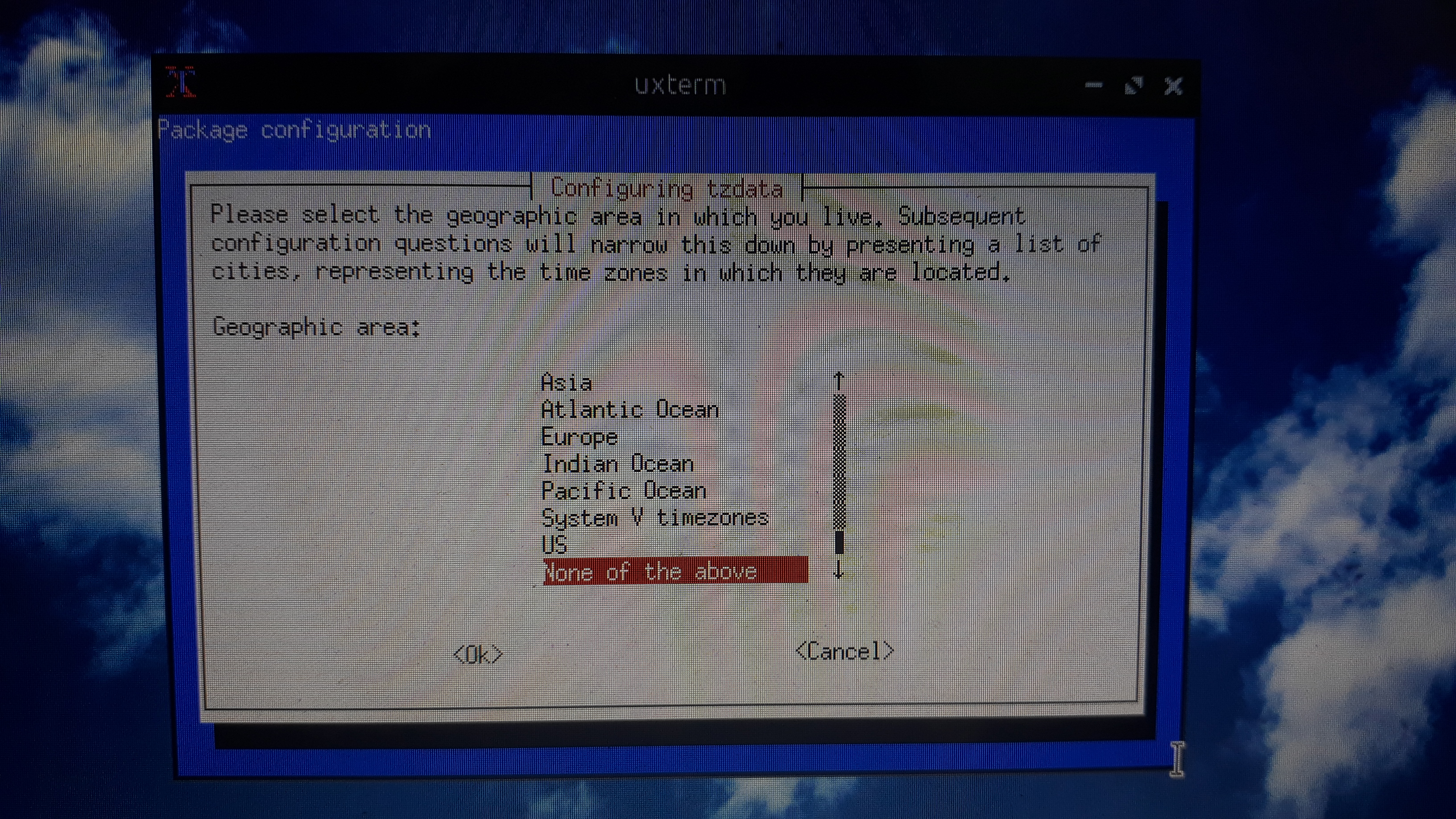
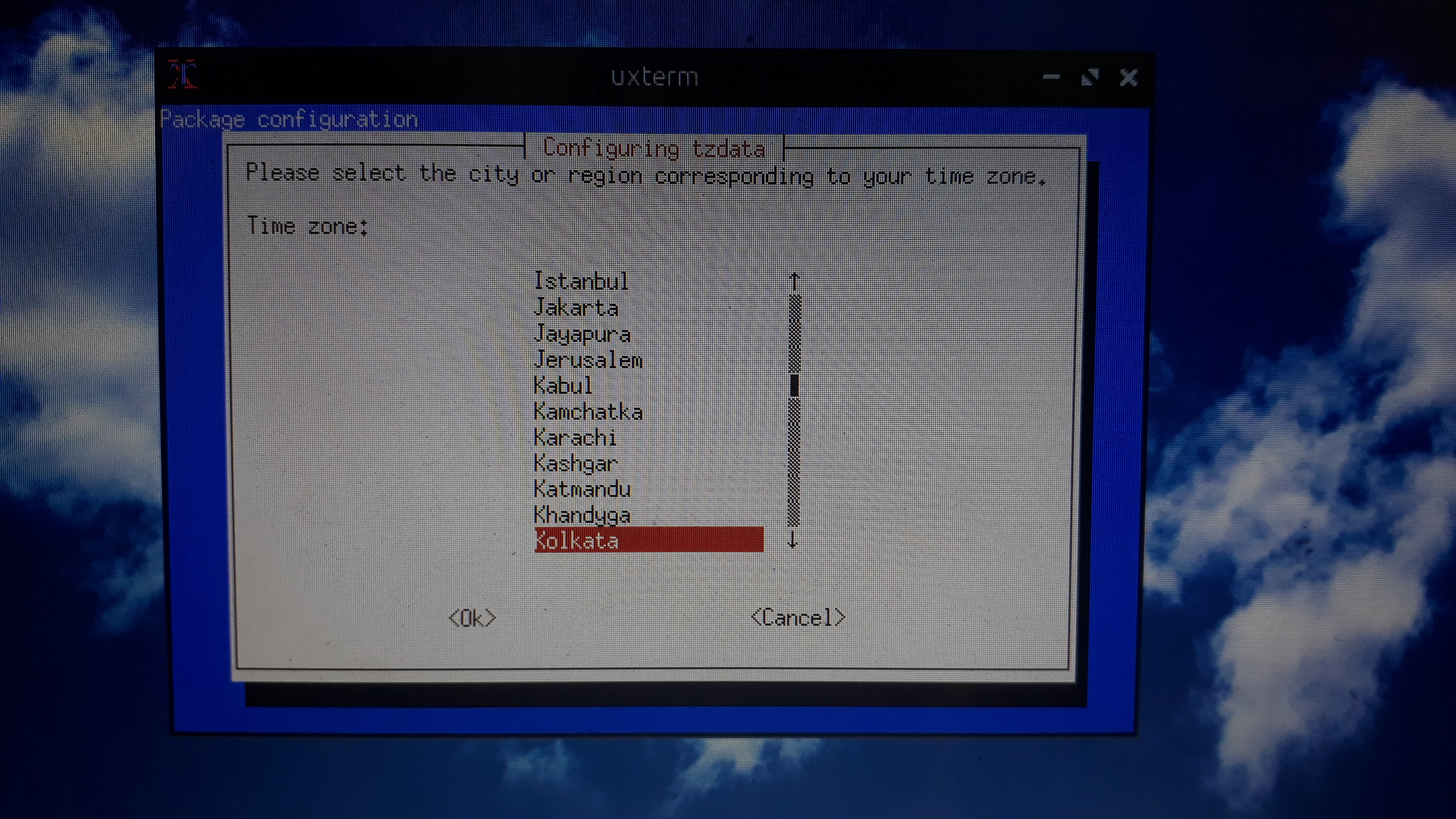
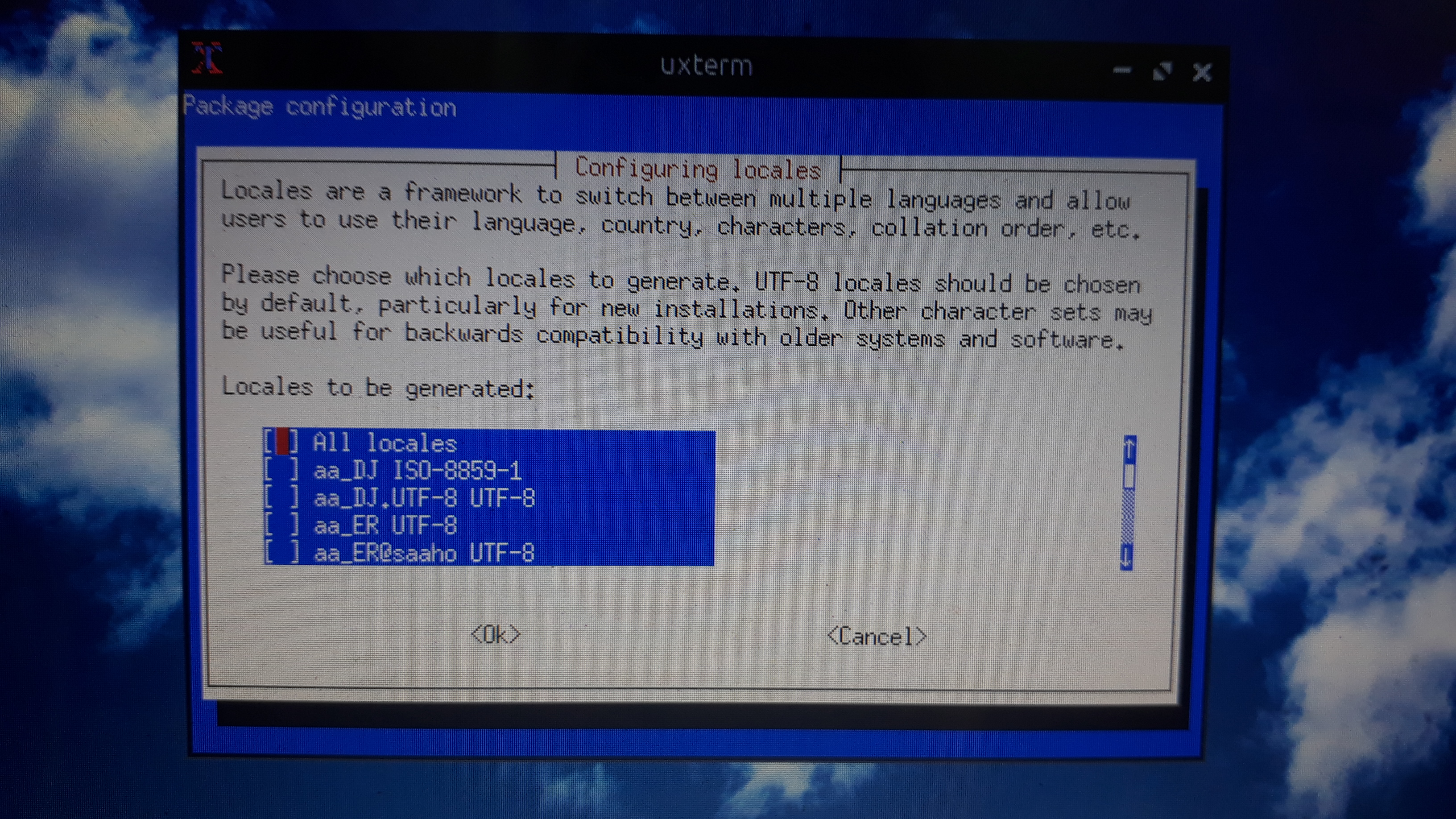
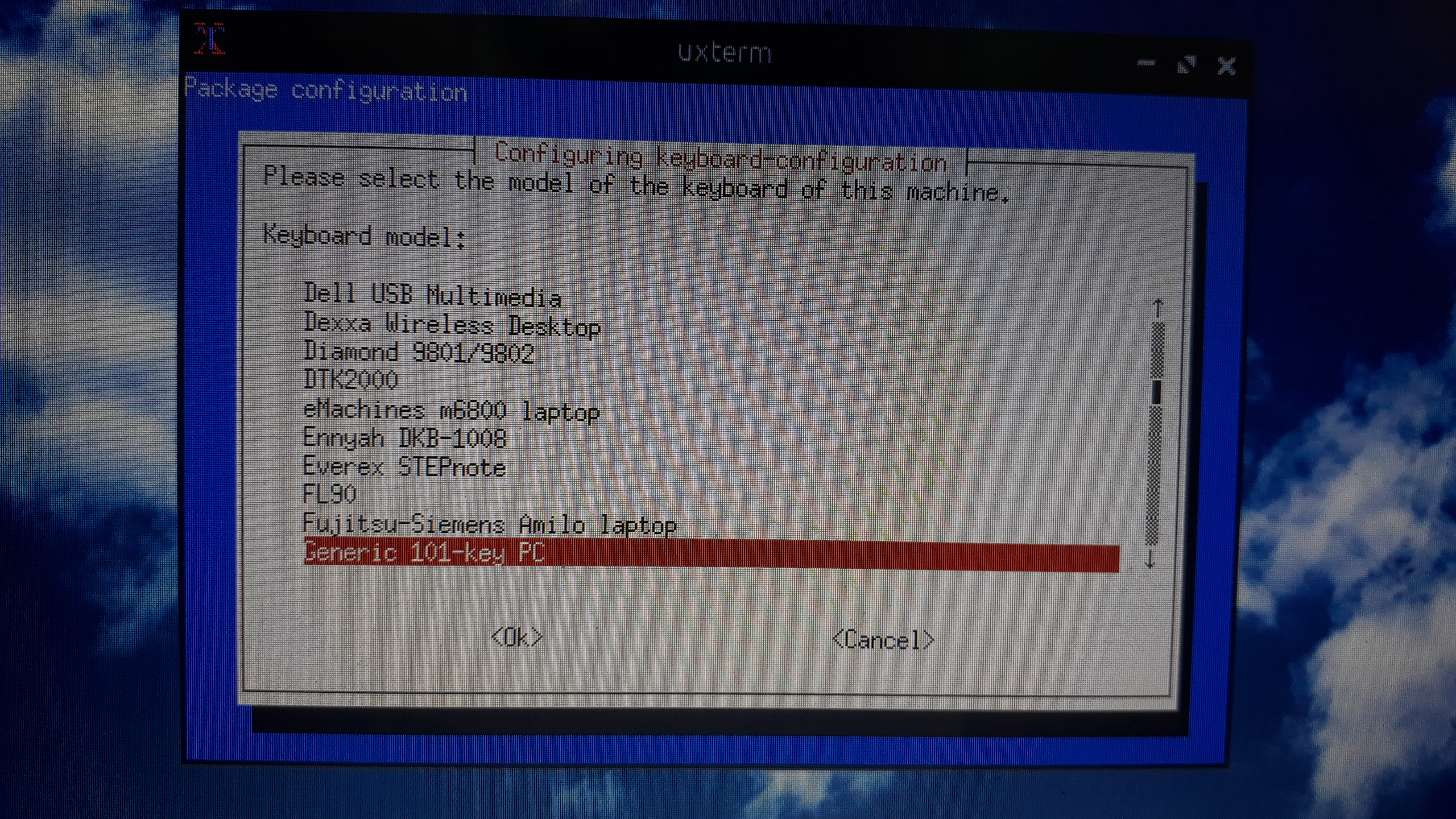
Select the type of Keyboard you use!
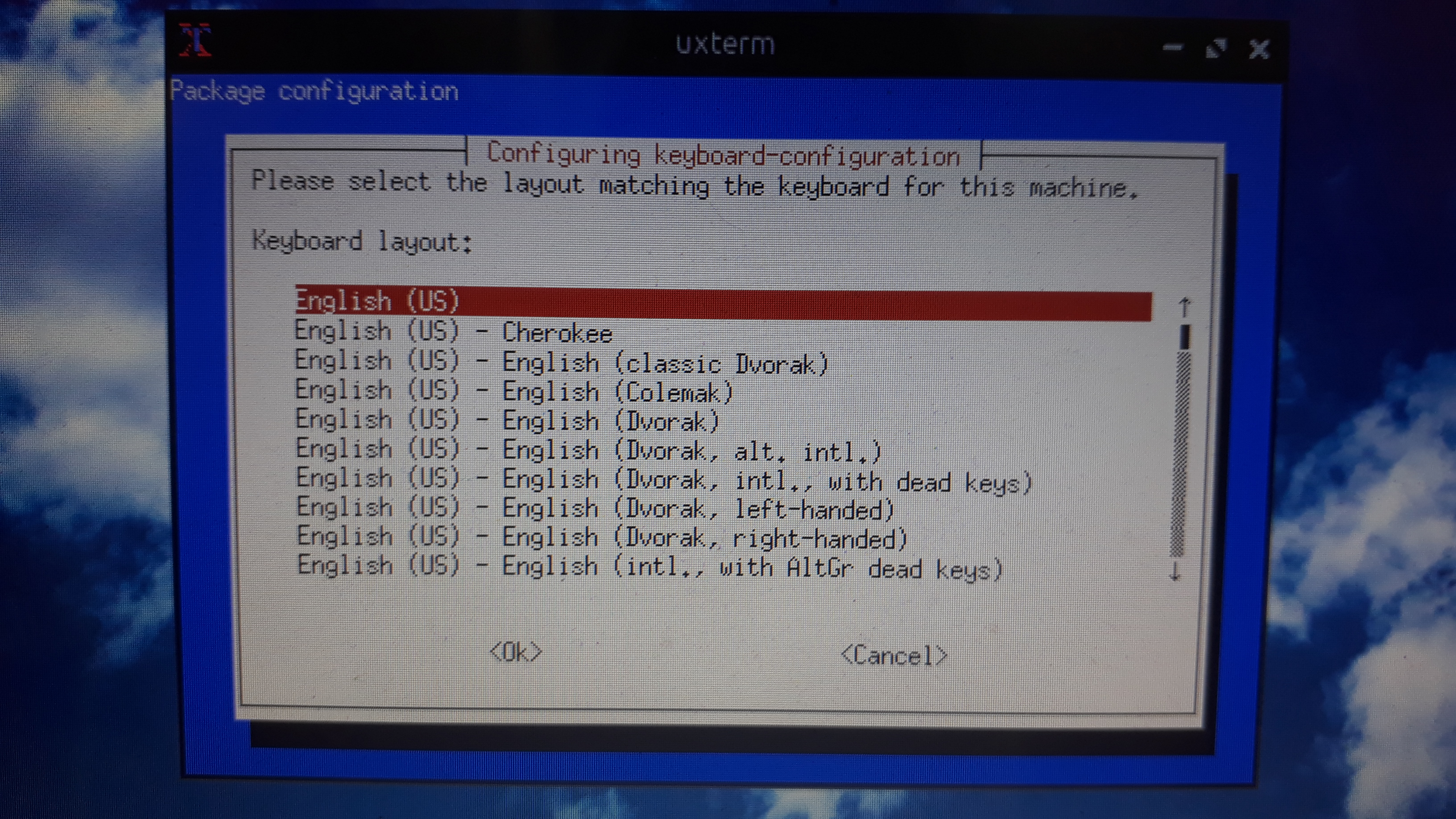
Select the type of Keyboard layout you use!
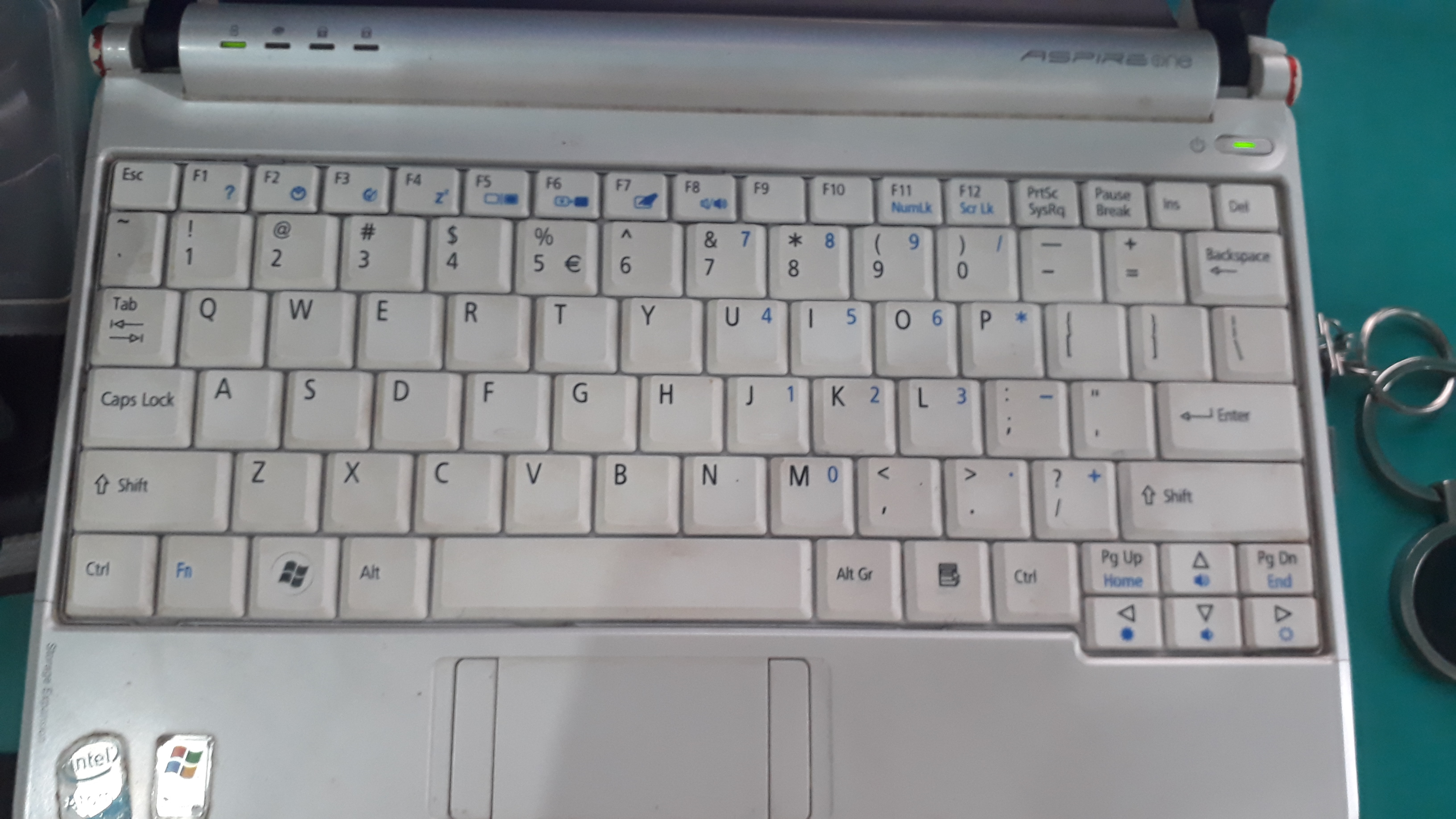
If you have a AltGR key like in the keyboard pic
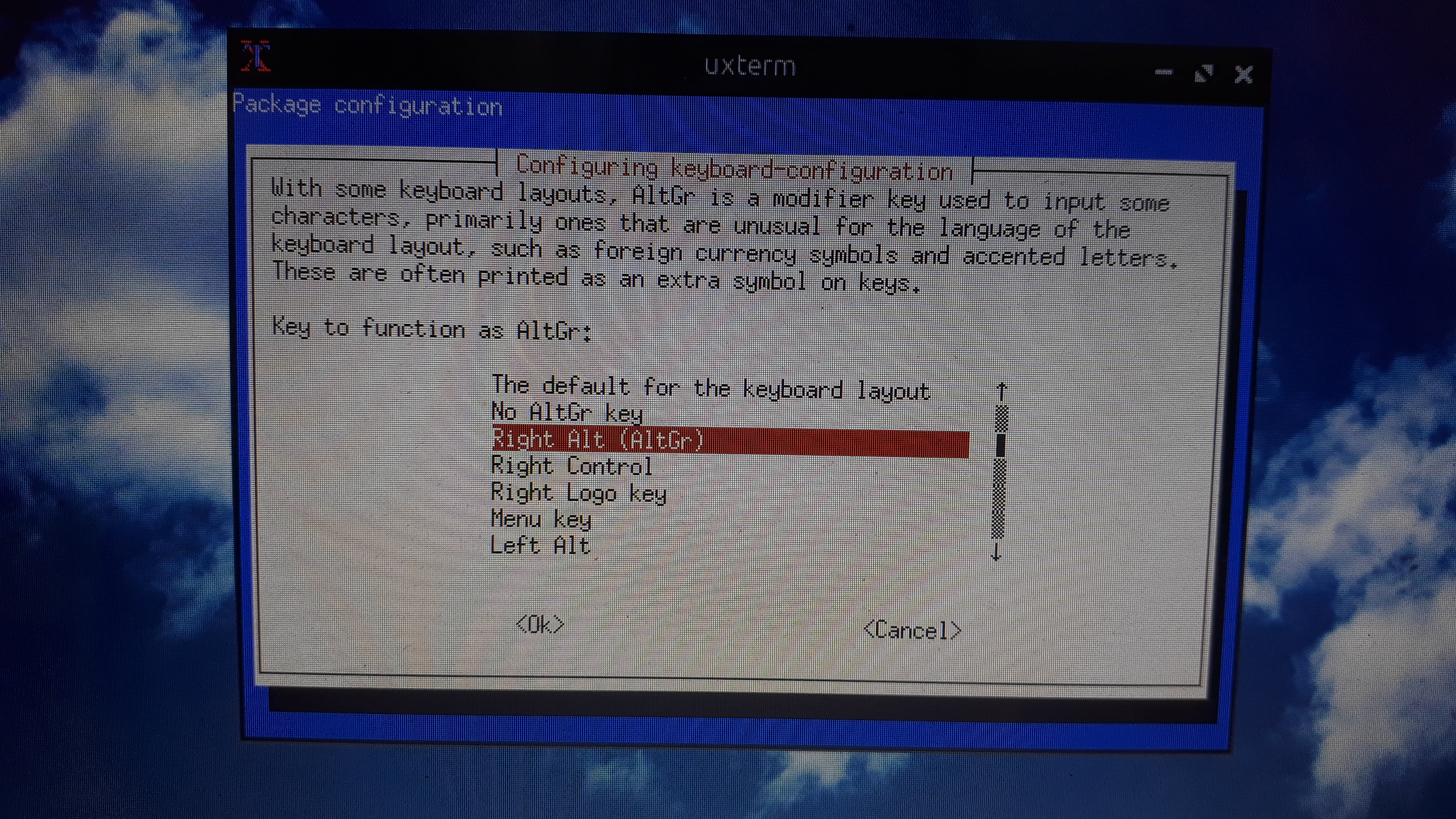
If you have a AltGR key like in the keyboard pic
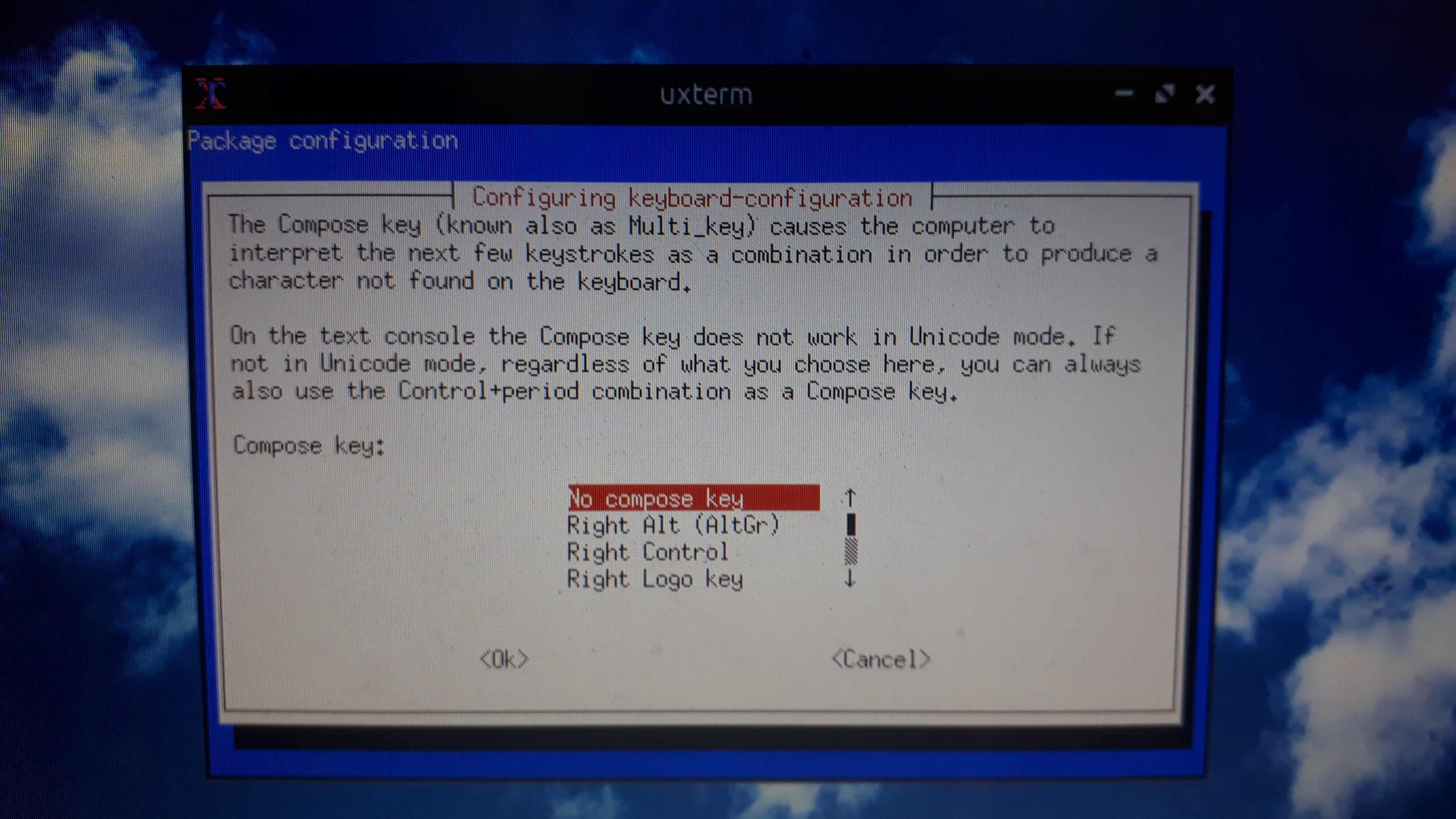
If you have a compose key select it in the menu
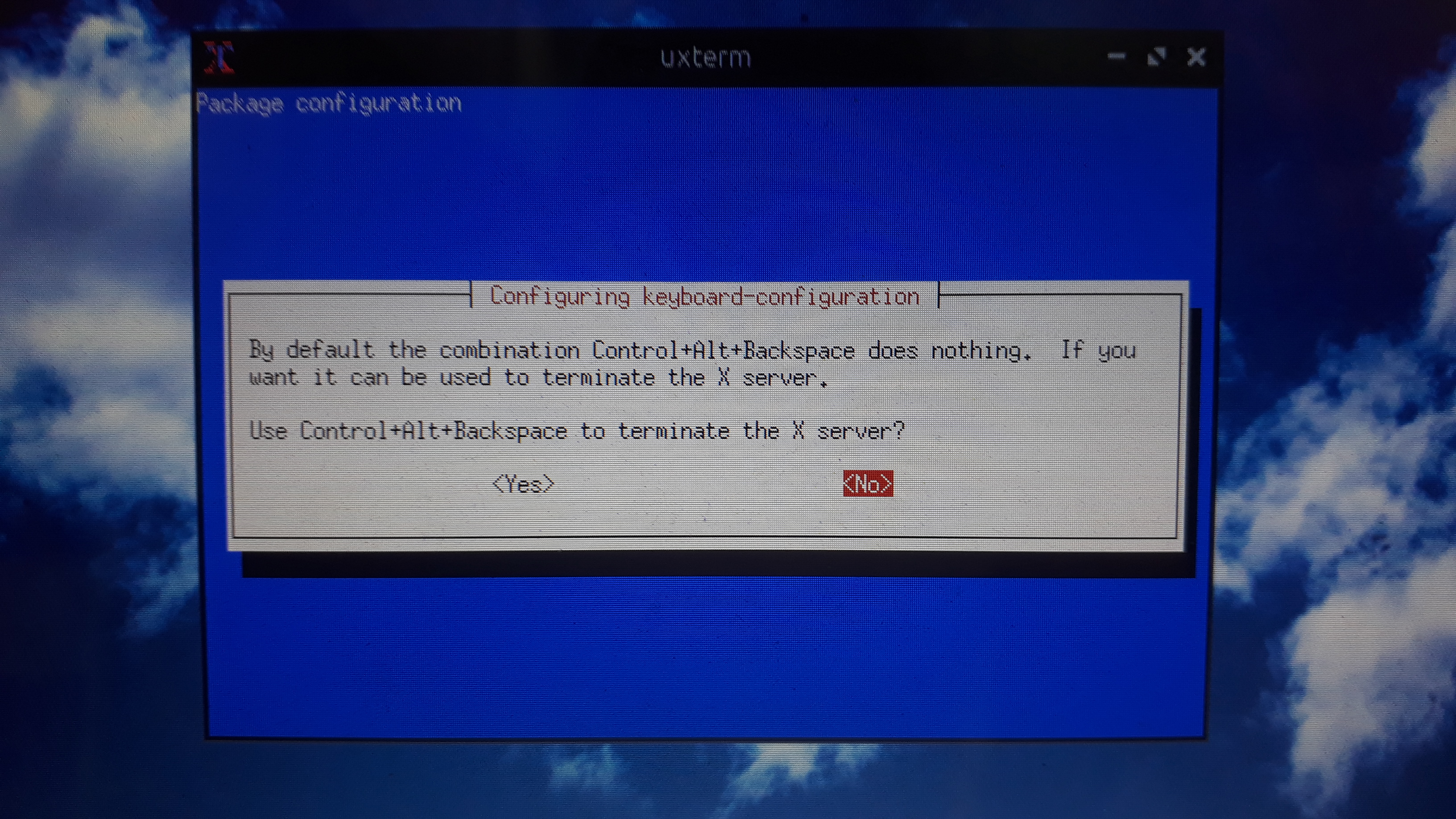
Select NO for desktop/laptops press YES for a Commercial Server
Select 2
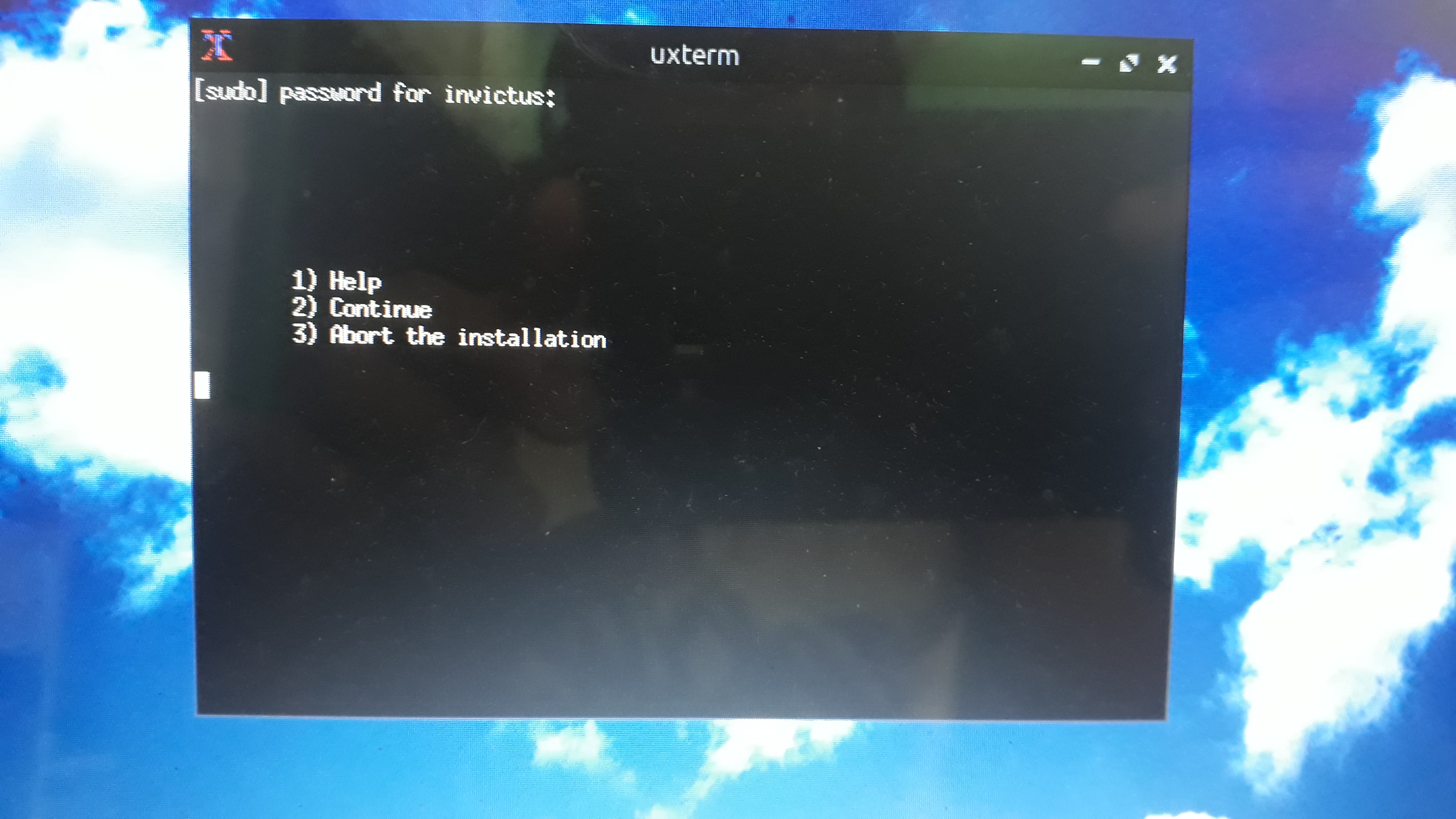
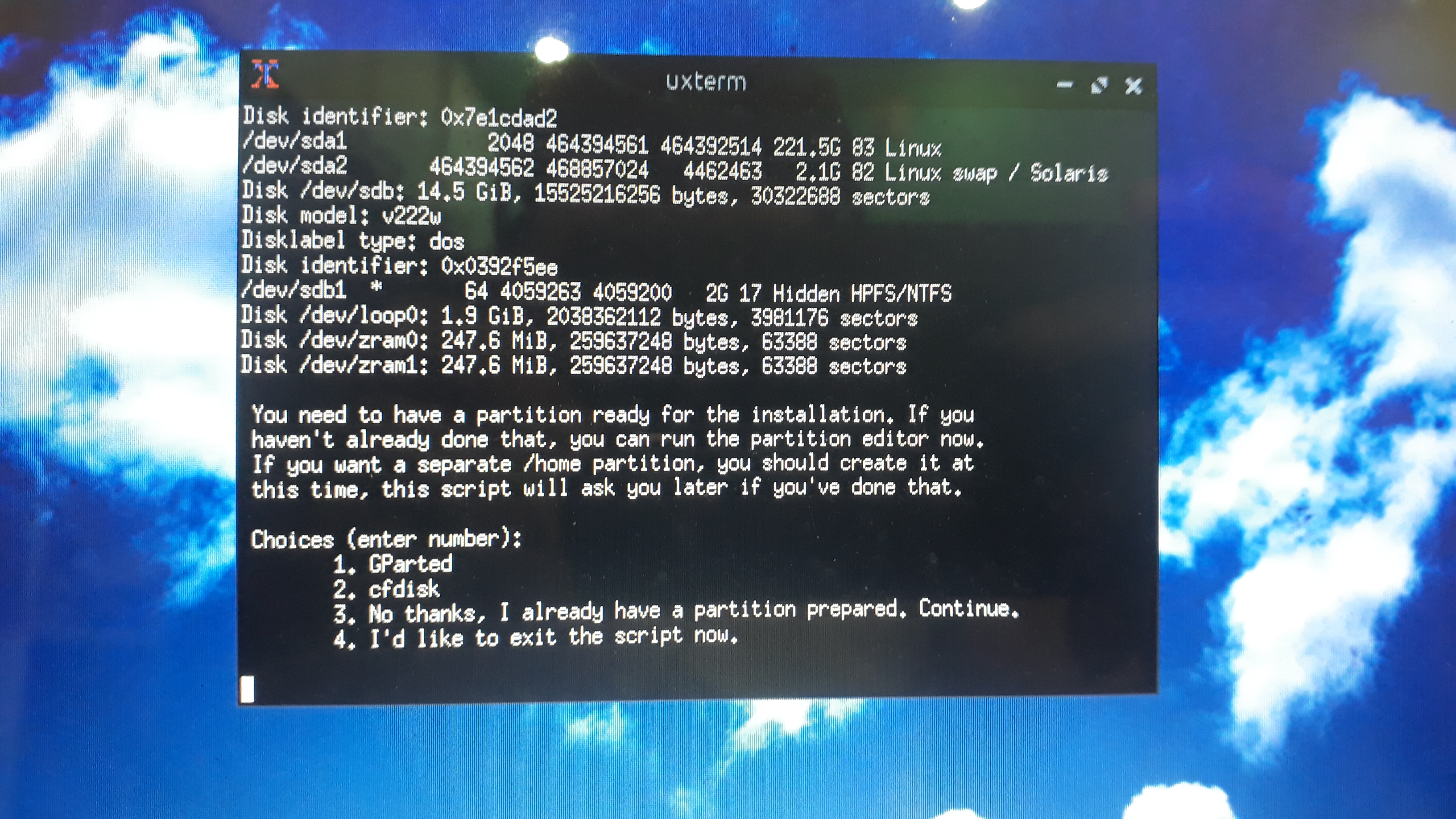
Select the partition software if you want to partition the drives
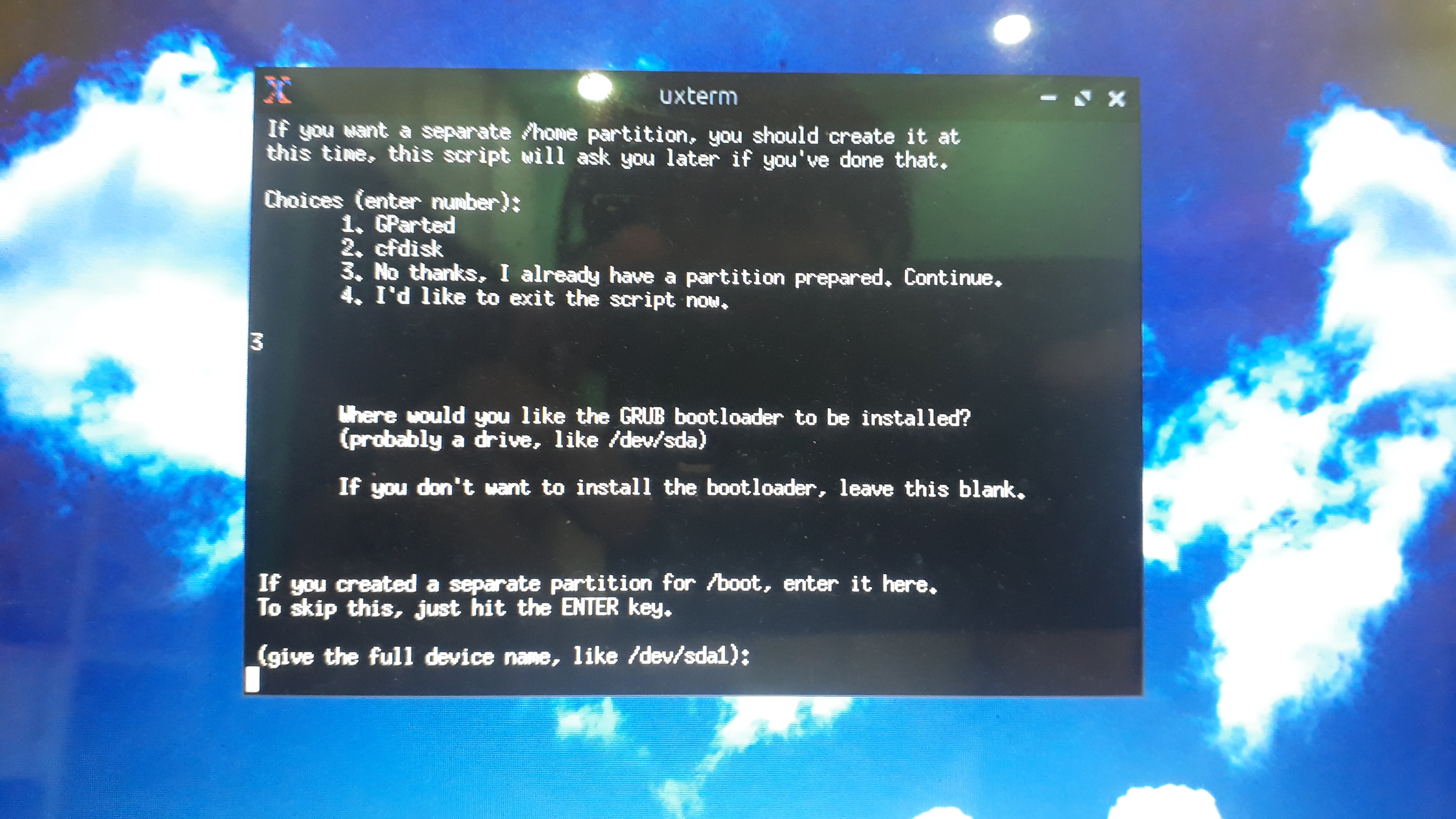
For GRUB enter your whole disk /dev/sda and for /boot leave it blank
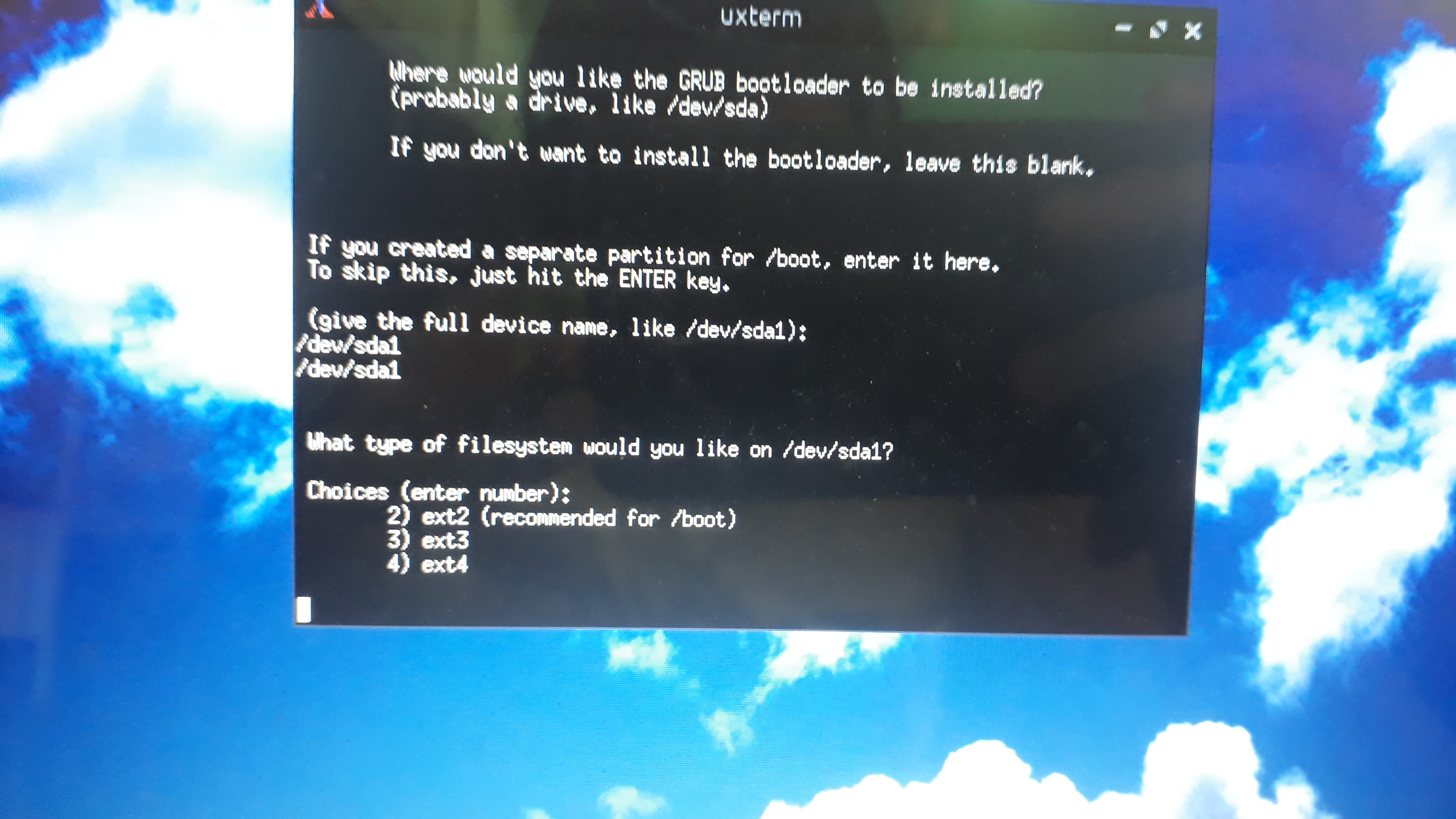
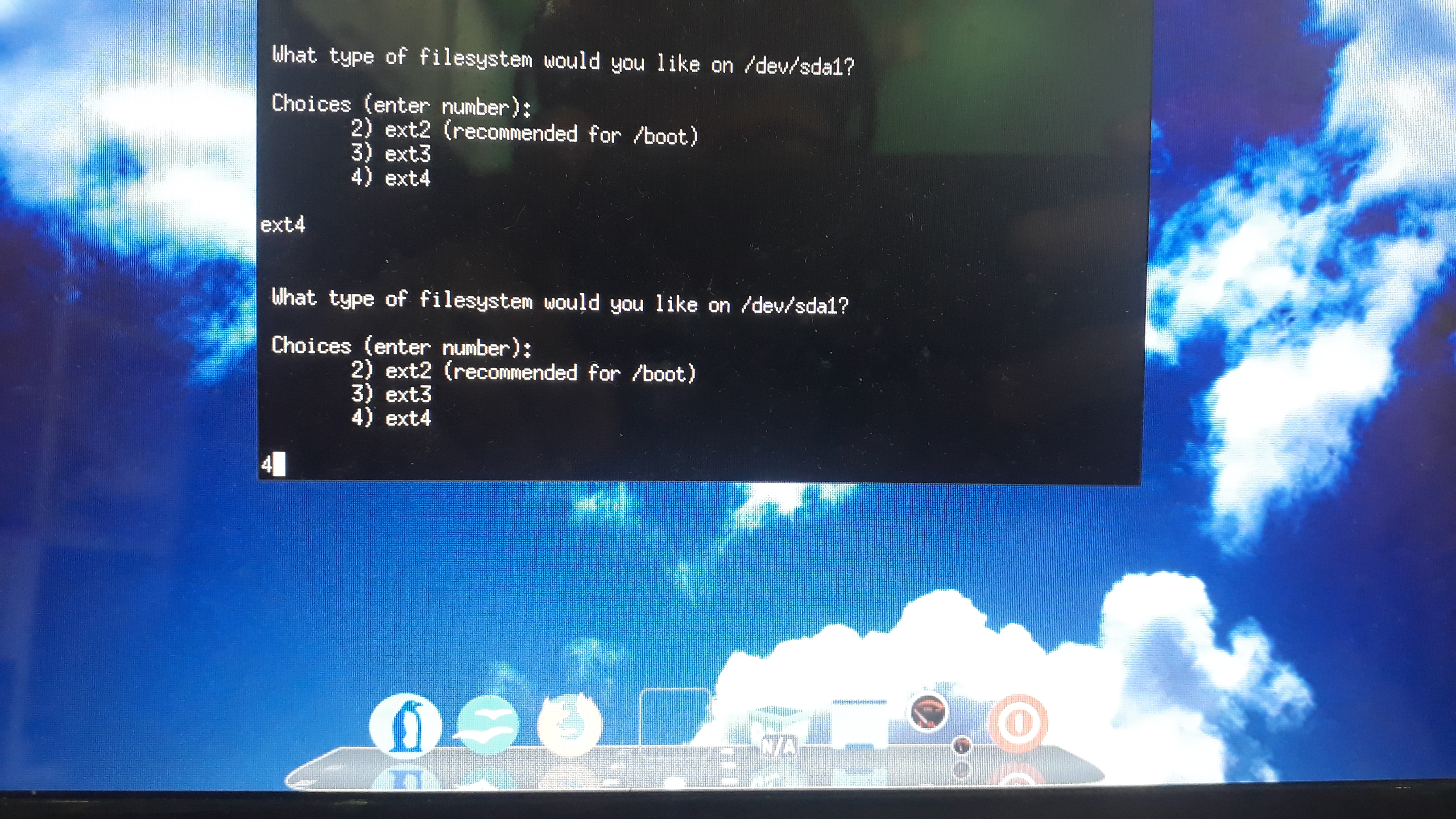
Select ext4 as partition type
For / select /dev/sda1 and for swap select /dev/sda2
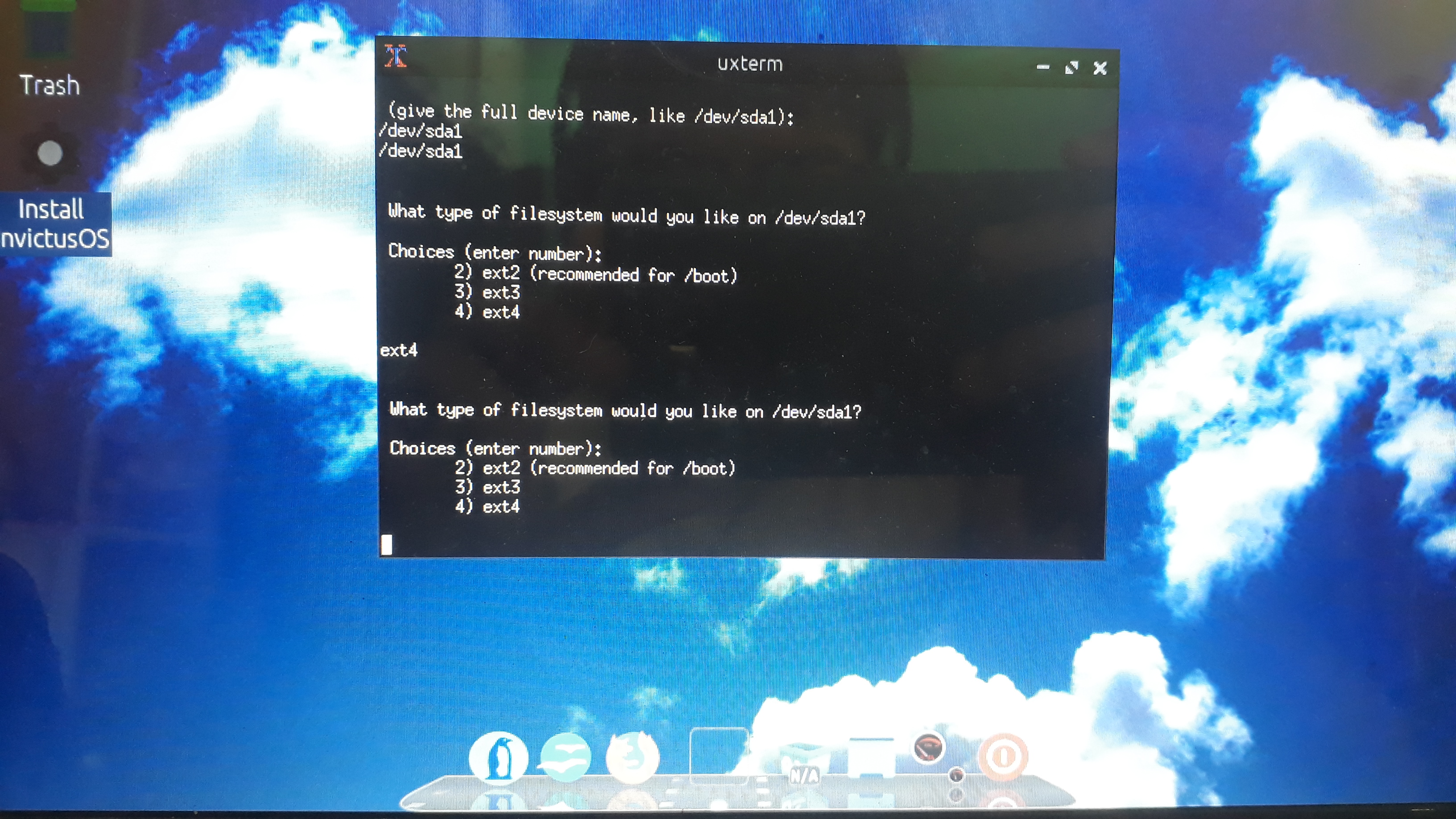
A bunch of text will start scrolling
Change username or password if desired
MAKE SURE TO INSTALL THE BOOTLOADER else your PC will FAIL TO BOOT
After it finished close the window and restart your computer
When the computer turns off remove USB then you should see the Installed System Loading